Inspect.
Scan pages. Review evidence.
Track findings.
A website QA workflow for scanning pages, reviewing evidence, and tracking findings across scans. Built as a portfolio project with local demo data.
- Work
- Software project
- Focus
- Website QA
- Workspace
- Local demo data
A place to review
website quality.
Inspect brings page scans, evidence review, and findings into a website QA workflow. The project focuses on the work around a scan: seeing what needs attention and following findings across scans.
This is a personal portfolio project. The workspace shown here uses local demo data and fictional sample sites; its counts are examples, not client results.
 View full screenshot
Scan. Review. Track.
Start with the websites
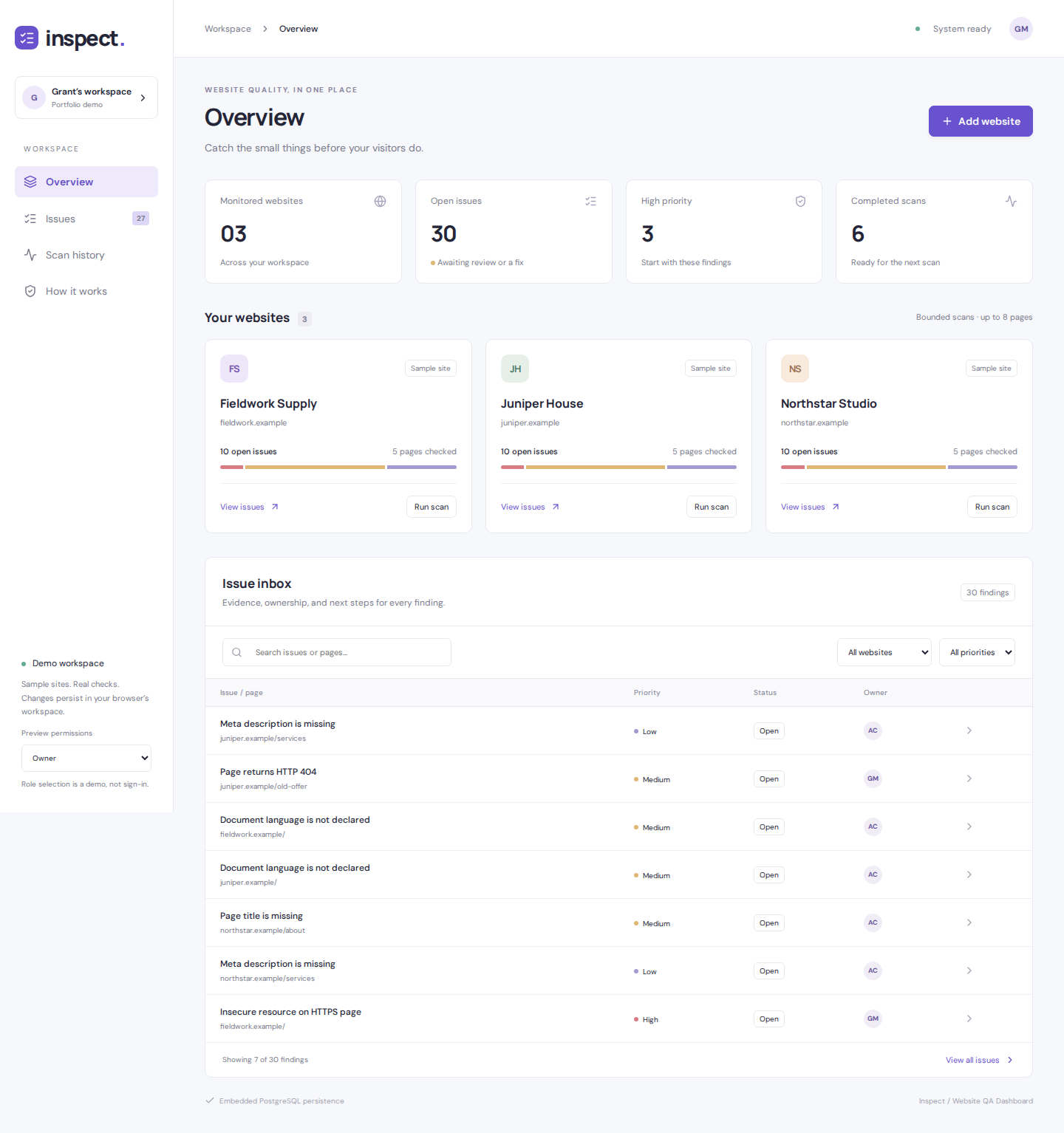
The overview groups sample websites with their scan summaries. Each website card includes paths to view issues or run a scan.
Bring findings into view
The issue inbox shows the affected page alongside a finding’s priority, status, and owner. The workflow includes reviewing evidence for findings.
Keep the work connected
Findings can be followed across scans. Overview, Issues, and Scan history form the main workspace navigation shown in the demo.
From an overview
to individual findings.
The dashboard moves from workspace-level summaries to individual websites and then to an issue inbox. In the screenshot, the inbox includes examples such as missing page titles, missing meta descriptions, and pages returning HTTP 404.
The original dashboard screenshot is shown here. Its sample websites, finding counts, priorities, and owners are demonstration content.
Explore the Inspect code